Field Guide
Growth Cortex
The shared memory every Robynn agent reads from: your brand story, facts, and voice, kept in one place and kept current.
One memory every agent writes from.
Growth Cortex is your shared brand memory, the source of truth that Rory, Content Studio, Website Studio, and Campaign Studio all read from. In-product it reads as "Robynn's Understanding", and you edit it directly.
Most tools start each task from a blank slate, so you re-explain your brand every time. Growth Cortex holds it once: the brand story, supporting facts and Knowledge Sources, your writing styles, messaging, products, files and media, and any sub-brands. Every agent inherits it, so curate it well and the output downstream is on-brand by default. You stop correcting the same mistake in three places.
The brain everything else inherits.
The Understanding
Robynn's read on your company: the brand story that frames every draft, every page, every campaign.
The Facts
Supporting facts, Knowledge Sources, products, files and media: the proof the agents cite instead of guessing.
The Voice
Writing styles, messaging, and sub-brands: how each piece should sound, and for which audience.
Treat it like a brand operating system, not a settings page. If output anywhere feels off-brand, the fix usually lives here: correct the memory once and every agent inherits it.
Set up your brand memory, and keep it honest.
Set it up
Before you start: have your brand basics handy: story, voice, key facts.
Correct the brand story
Open Robynn's Understanding and read the brand story it holds. Click Edit understanding and fix anything that's wrong before it spreads downstream.
Connect your sources
Under Knowledge sources, hit Browse and connect Google Drive, Notion, your website, or GitHub. The more grounded the memory, the fewer guesses agents make.
Set voice and messaging
Open Writing styles and Messaging to define how pieces should sound. Tone lives here, not in each individual draft.
Add your products
Open Products and record each one as a fact, so every agent describes it the same way in every channel.
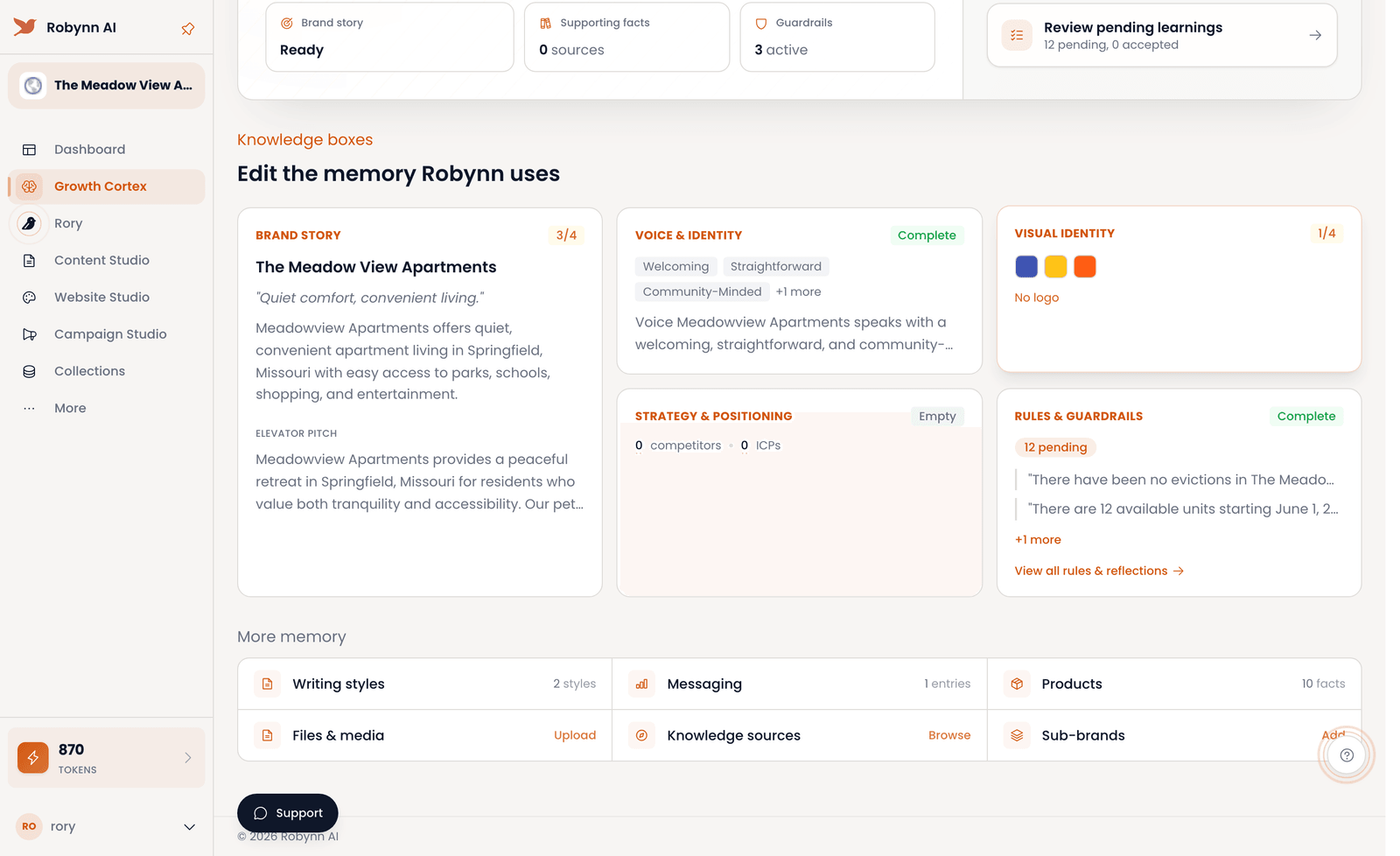
Growth Cortex · Robynn's Understanding, the brand story Robynn uses to write.
Keep it current
Before you start: do this when the brand has shifted and the memory needs to catch up.
Review pending learnings
Click Review pending learnings and open the Agent Reflections tab. Accept, edit, or reject each proposed change. The memory only moves with your sign-off.
Add files and sub-brands
Open Files & media and Upload new assets, then go to Sub-brands and Add one so each audience reads from the right context.
Preview the memory
Hit Preview to read the full memory in one place before any agent works from it.
Export when you need it
Click Export PDF to take the memory outside Robynn: for a brief, a partner, or a review.
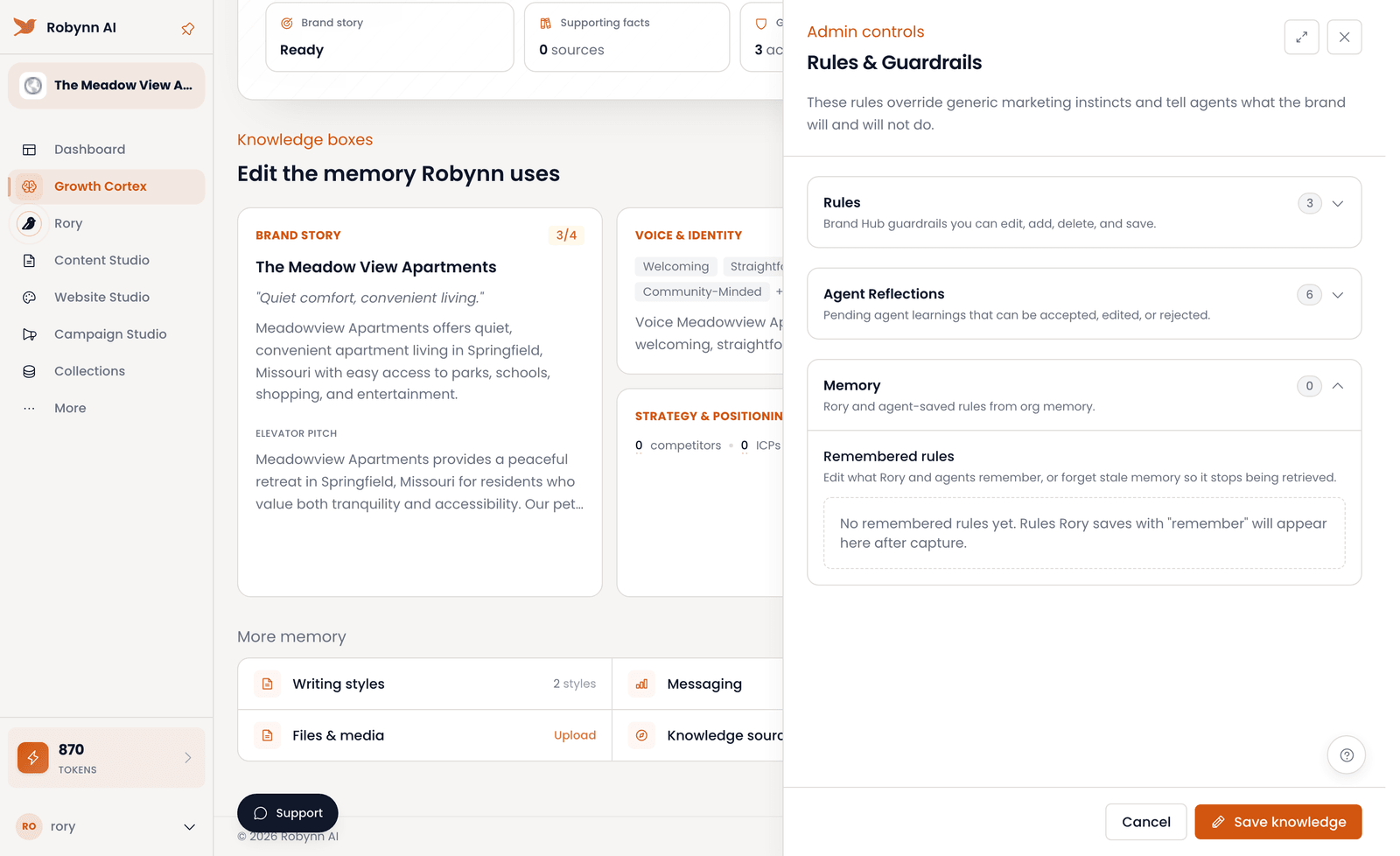
Growth Cortex · rules and pending learnings, accepted, edited, or rejected.
Keep the memory rich, and keep it fresh.
Sub-brands
Spin up a sub-brand, a slightly different brand context, and choose it in Rory and anywhere else you work, so the right voice shows up for the right audience.
Supporting docs
Upload your own brand and design docs to support or override what Growth Cortex inferred. Your source of truth wins.
Knowledge sources
Connect Google Drive, Notion, your website, or GitHub. Robynn pulls changes from them so the memory stays current without anyone re-entering it.
Rules and guardrails
Set the rules agents must follow, what the brand will and won't do, and let Robynn propose new ones from what it learns, for you to accept, edit, or reject.
Robynn reflects on the day's changes across your sources and surfaces them as potential rules, in your inbox or right here in Growth Cortex, so the memory only gets sharper over time.
Your brand memory is set: every agent now writes from it. Next: and hand it a task.
Field Guide
Rory
Your conversational AI CMO: the front door you delegate to in plain language, grounded in your brand.
Hand work to a marketing chief in plain language.
"Hey, I'm Rory, your CMO." Rory is Robynn's conversational AI marketing chief: the front door you delegate to, in plain language, grounded in your brand context.
You don't fill out a form or pick a template. You describe what you want in a sentence of intent, and Rory drafts it, grounded in your Growth Cortex memory by default. The work happens in threads, and what comes out are artifacts: an article, a landing page, a social post, a newsletter, a press release, product copy, or ad creative. You steer, Rory drafts, you keep the judgment on what ships.
Conversation, context, artifact.
The Conversation
A thread where you give Rory a task. The history stays, so context builds instead of resetting.
The Context
Your brand, drawn from Growth Cortex by default, plus any sources you add for the task at hand.
The Artifact
The output Rory drafts: an article, social post, or any of the seven types, yours to refine and carry into the studios.
Treat Rory like the lieutenant you brief, not the tool you configure. Hand over the intent and the sources, let Rory draft from your brand memory, and spend your attention on the call only you can make.
Brief Rory, get an artifact.
Brief Rory
Before you start: know what you want out: an article, a social post, the angle you're after.
Open a thread
Click New Thread in the left nav. This is where the task lives, and where its history will stay.
Confirm the brand context
Check the Brand context: Org brand selector so Rory drafts from the right memory.
Describe the task
Type one sentence of intent in the chat prompt, or open the guided wizard and pick an artifact type: Article, Social, Landing Page, and the rest.
Refine in the thread
Rory drafts an artifact; sharpen it in the conversation until it's ready to ship.
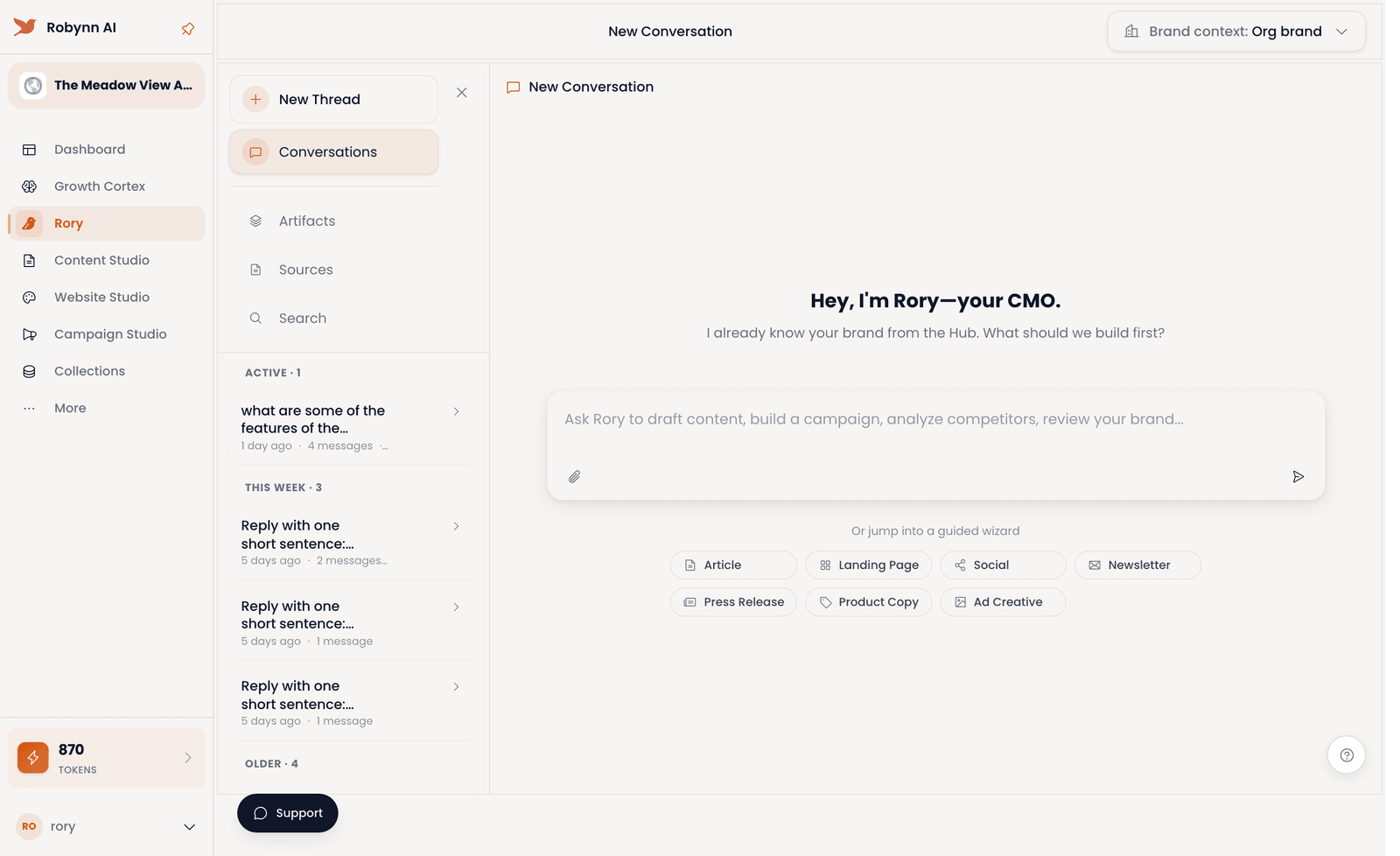
Rory · conversations and brand context.
Ground it in your sources
Before you start: gather the docs and links that matter to this draft.
Add your sources
Open the Sources panel and add what matters with Upload File, Add URL, or From sources already in your memory.
Point Rory at them
Reference the sources so Rory drafts from facts, not guesses.
Let Rory draft
Rory works from those sources alongside your brand memory.
Keep it organized
Keep your Conversations and Artifacts tidy from the left nav so the work stays where you can find it.
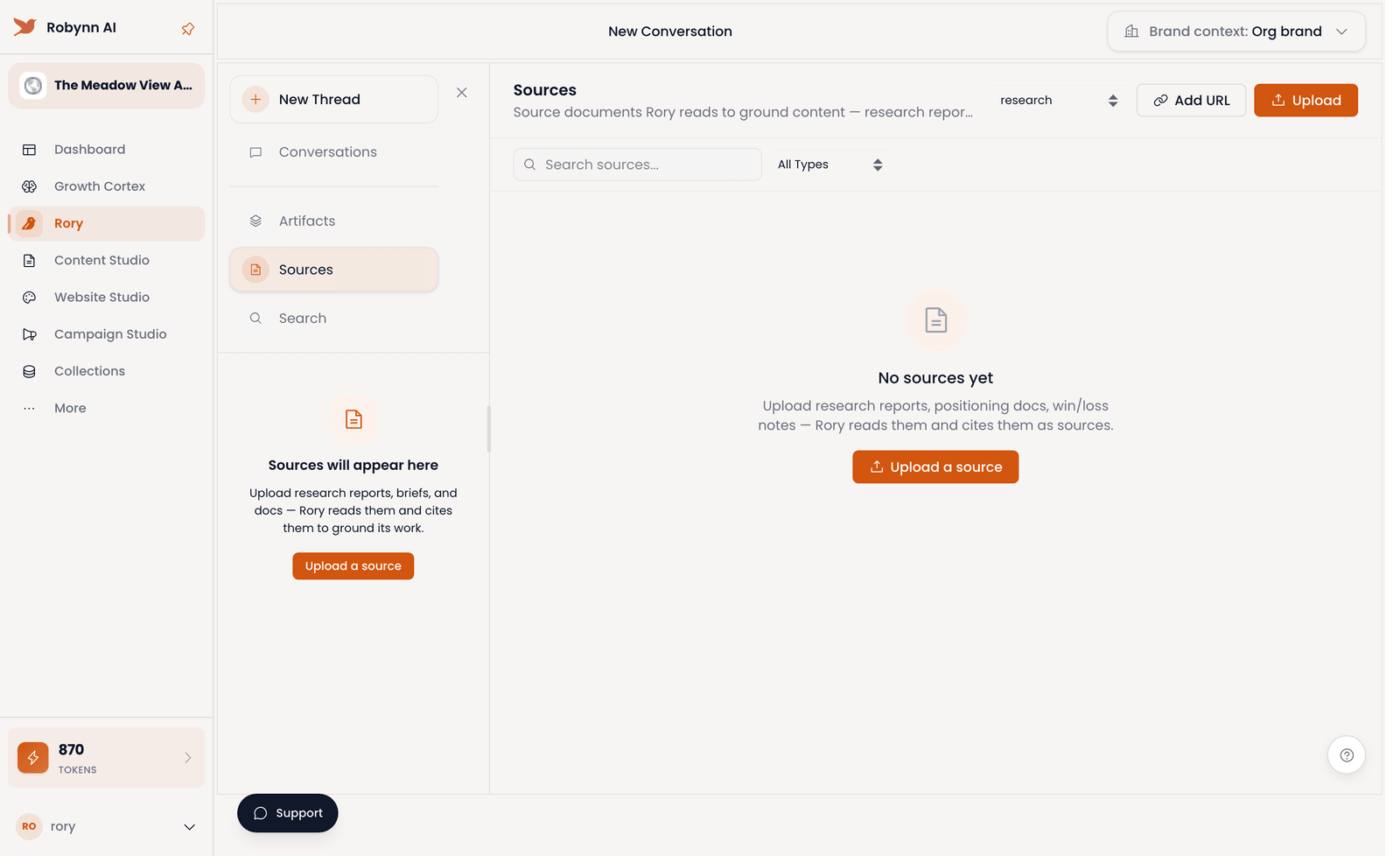
Rory · sources.
Rory is multiplayer by default.
Shared the moment it exists
Every thread is shared with your org the second you start it, and every artifact Rory drafts is shared too, so the whole team works from the same context. Send anyone a deep link to a chat and they land right where you are.
Private when you need it
Click into any thread or item and make it private. Shared is the default; the exception is yours to set.
Publish an artifact to the world
Share a single artifact, a landing page, say, outside Robynn. Hit Publish, choose how long the link should live, and send the URL. It exposes just that one piece, and expires when you said it would.
Because threads and artifacts are shared by default, anyone on the team can pick up where someone else left off: no copy-paste, no re-briefing.
You briefed Rory and it brought the brand: a grounded artifact in hand. Next, take it into or to ship it.
Field Guide
Content Studio
Where your strategy stops being a deck and becomes a plan, a calendar, and the pieces you actually ship.
Turn a point of view into a quarter of work.
Content Studio is where a message becomes a plan, a calendar, and the individual pieces, each one researched and drafted by an agent, then shaped and shipped by you.
The agents take the blank page: research, first draft, a full schedule. You keep the calls only you can make: which message to lean into, what's worth shipping, what to cut. The rest of this guide walks you through it.
Three layers, one source of truth.
The plan
Your intent for a window of time: the audience, the message, the channels.
The calendar
When each piece ships. Drafted from the plan, rearranged by you.
The item
The actual piece: drafted in your voice, edited by your hand, linked back to its plan.
Start at the altitude that matches your decision. Planning a quarter? Walk the steps below. Have a brief due Thursday? Skip straight to drafting a single piece, that's step 5.
Create a content plan, research to published.
Before you start: pick a window to plan for: a launch, a theme, or a full quarter.
A plan is the through-line for everything you'll ship. You'll go from a blank window to an approved calendar with a draft behind every slot: the agents do the research and the first pass, you make the calls.
Research the angle
Open Projects → New plan, name the initiative, and set the window (e.g. "Q3 launch", Jul–Sep). Robynn reads your Growth Cortex: positioning, audience, what's already shipped, so the plan starts from your truth, not a blank prompt.
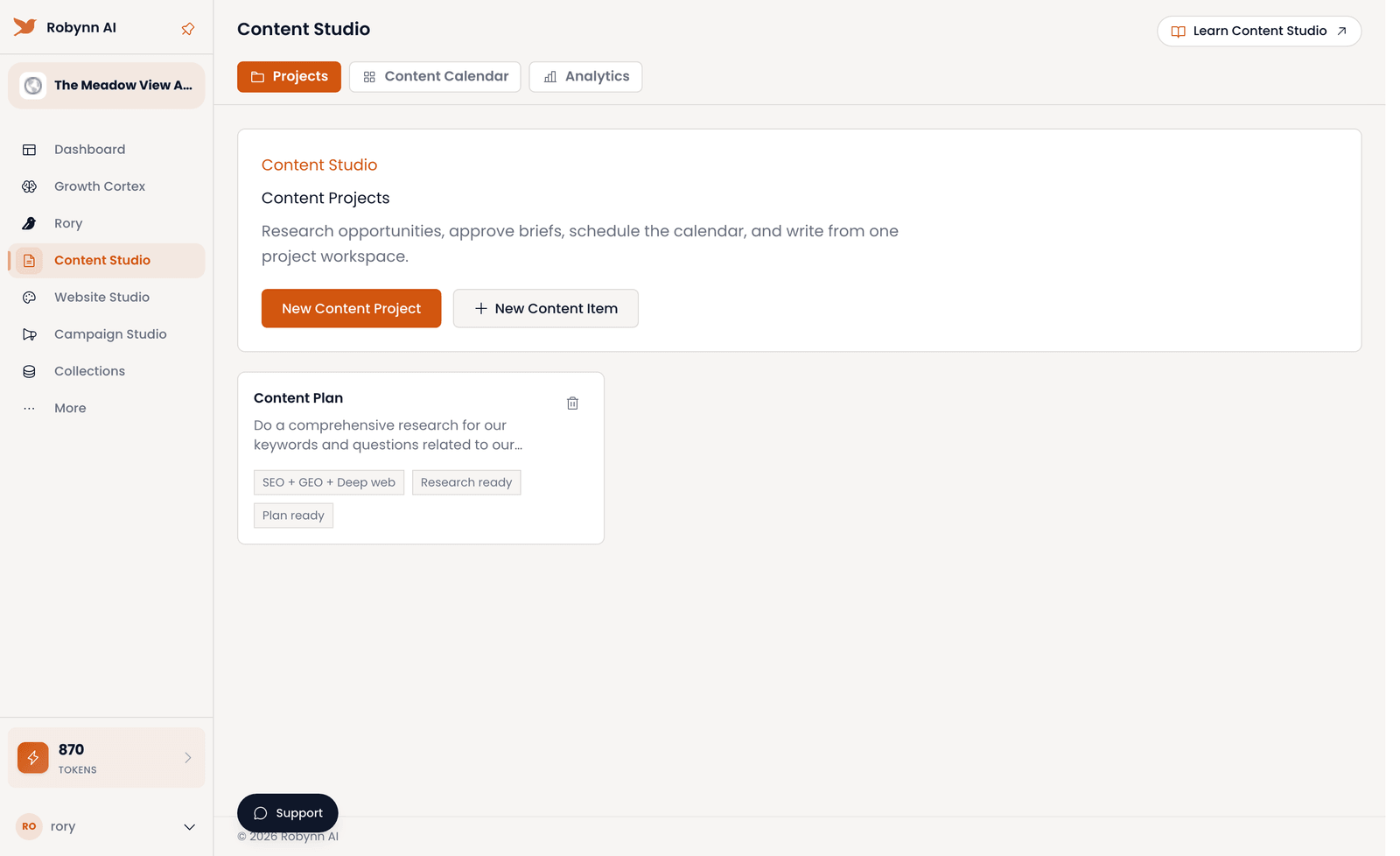
New plan · research.
Set your intent
Enter the audience, the one message you're leaning into, and the channels. This is the call the agent can't make for you: everything downstream inherits it.
One sharp message beats three hedged ones. The narrower the intent, the better the drafts.
Generate the calendar
Click Draft plan. The agent lays a cadence of pieces across your window, each slotted to a date. Read it as a strong first draft of the schedule, not a commitment.
Iterate with the agent
Drag pieces to new dates, cut what doesn't earn its place, and ask the agent to reshape: "fewer posts, more depth." It redrafts the slots in place. This is the loop where the plan becomes yours.
Cutting is a decision, not a failure. A tighter calendar ships.
Draft a piece
Open a calendar slot, give a one-line angle, and the agent drafts it in your brand voice with the plan's context. Sharpen the hook and cut the filler, this is your 10%. In a hurry? You can start right here instead, with Create → New item.
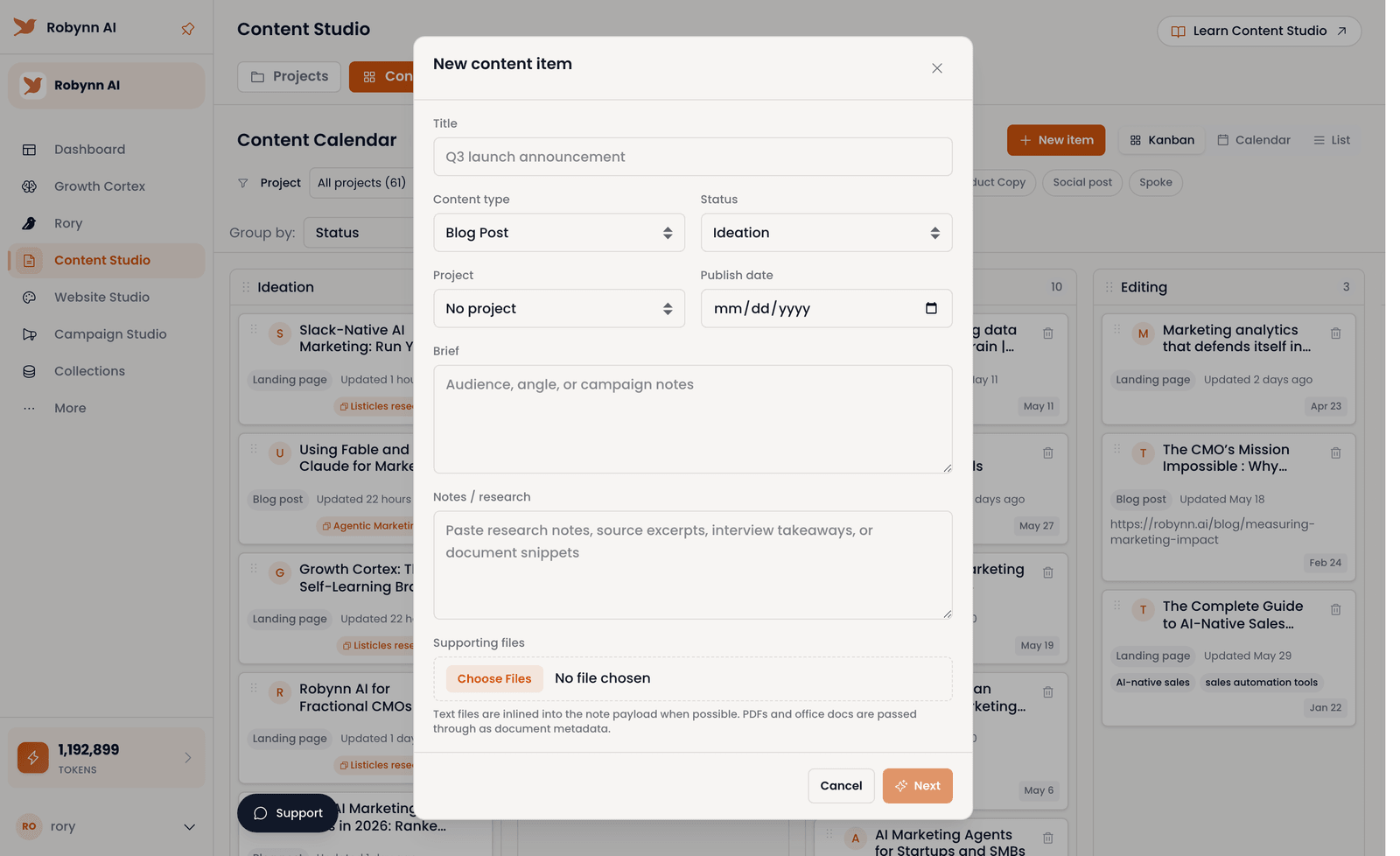
New content item.
Approve and publish
Approve the plan, then Publish or schedule each piece. Every item stays linked to its plan, so the calendar always reflects what's actually live.
An approved quarter: a calendar you believe in, and a draft behind every slot. The agents took the blank page; you kept the judgment.
You now have a content plan: an approved quarter with a draft behind every slot. Next, hand it to to put a launch behind it.
Field Guide
Website Studio
Where your site becomes a living surface: brought in, edited visually, and kept safe until you publish.
Bring your site in, then change it without fear.
Website Studio is where you build, edit, and optimize your website, every change held draft-safe, so nothing goes live until you publish. The screen opens on "Your websites."
Most editors trade speed for safety. Website Studio keeps both: a Brand Agent holds edits on brand, and a Website Auto-Healer audits your pages and proposes fixes, and you approve before anything ships.
Bring it in, edit it, heal it.
Bring it in
Start fresh, connect a Robynn site, or connect WordPress. Pages come in ready to edit.
Edit it visually
Shape pages by hand, with every change held draft-safe until you publish.
Let it heal
The Auto-Healer audits for SEO and GEO, then proposes fixes you review before applying.
Already have a Robynn site? Connect it: changes stay safe until you publish, so you can edit without fear.
Bring a site in, then let the Auto-Healer fix it.
Bring your site in
Before you start: decide whether you're starting fresh or connecting an existing site.
Choose how to start
On the Home tab under "Your websites," pick an entry card: Start fresh to build inside Robynn (about two minutes to your first page), Connect a Robynn site to edit one Robynn already built, or Connect WordPress to pull pages in.
Connect the safe way
Most teams pick Connect a Robynn site: your changes stay safe until you publish. With Connect WordPress, updates go back as WordPress drafts, so the live site never moves until you approve.
Open a page
Your pages come in ready to edit. Open one and start shaping it by hand: nothing you touch is live yet.
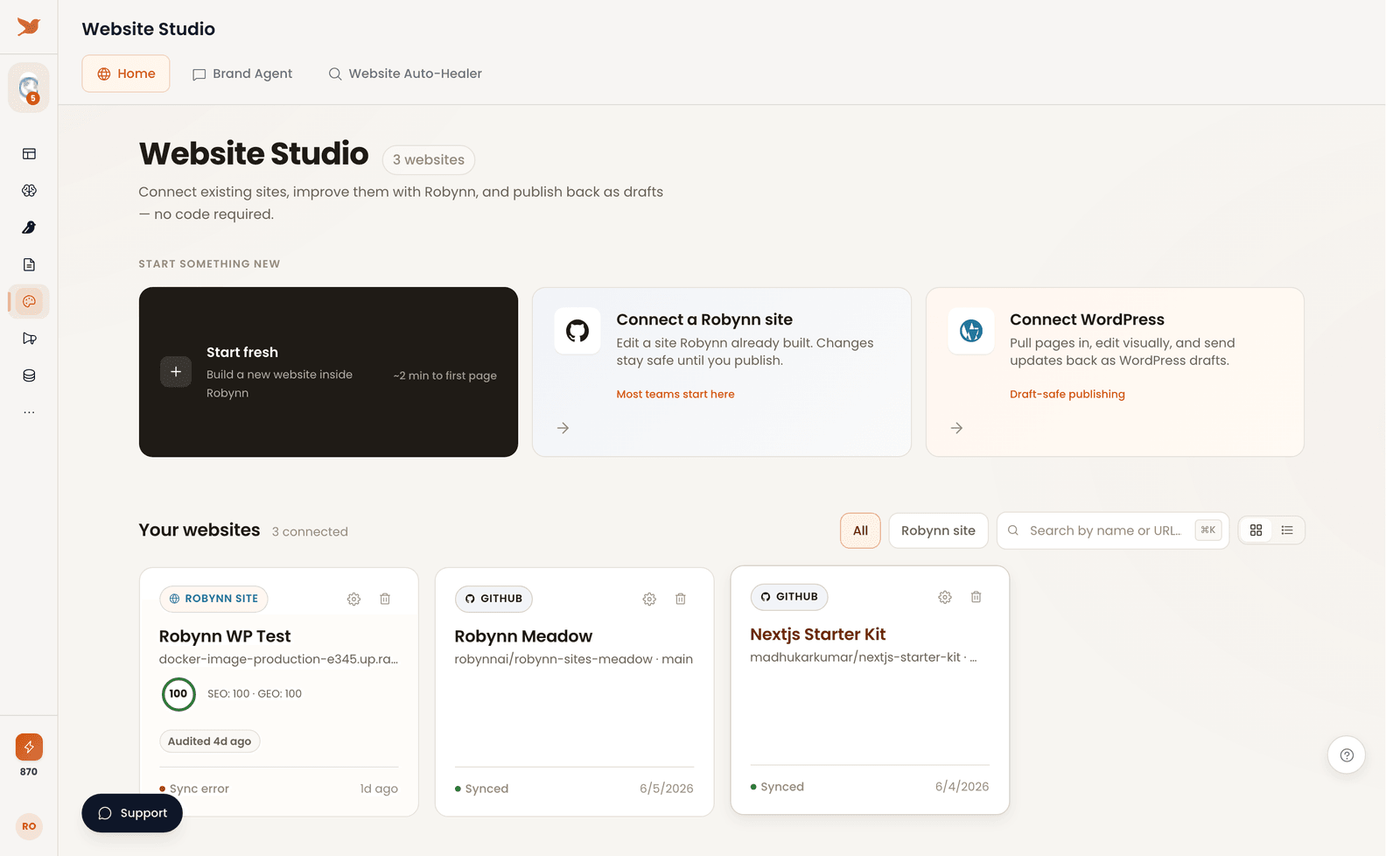
Website Studio · your websites.
Optimize and publish safely
Before you start: have a site connected from track A.
Edit pages visually
Shape each page by hand. Every change stays draft-safe until you publish, so you can rework freely.
Run the audit
Open the Website Auto-Healer tab and Choose a website to run the brand-aware SEO and GEO audits across its pages.
Review the recommendations
The Auto-Healer surfaces what it found. Read each recommendation and decide what to apply: the calls stay yours.
Publish as drafts
Send your changes as drafts. Nothing goes live until you approve it, so the site moves only when you say so.
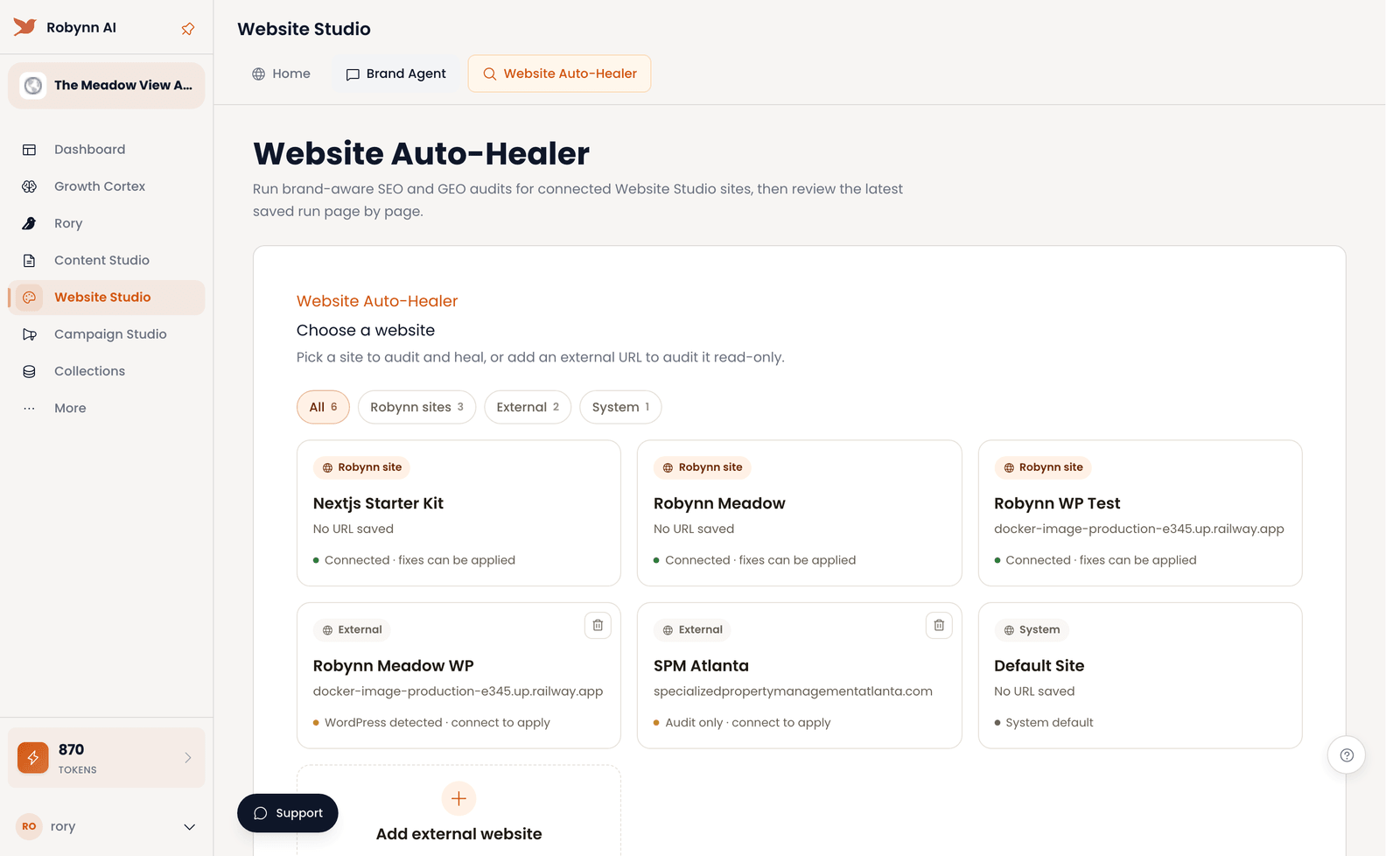
Website Studio · Auto-Healer.
Your site is in, audited, and publishing as drafts: live only when you say so. Next: point at it to keep the pages fed.
Field Guide
Campaign Studio
Where a sentence about who you want to reach becomes a campaign you can run, watch, and steer.
Turn a sentence into a running campaign.
Campaign Studio is where a plain-language target becomes a multi-step campaign you review, run, and watch: you name the outcome, the agents do the assembly.
On the Campaigns screen you describe who you want to reach, Robynn builds the plan, and you move it through status from Drafts to Active. You keep the calls only you can make: the target, the goal, and what's allowed to run.
One goal, one pipeline, full control.
The goal
A target and an outcome in a single sentence: who you want to reach, and what you want from them.
The plan
The multi-step campaign Robynn assembles from your goal. Read it during Continue setup, before it runs.
The pipeline
Where every campaign lives by status: Drafts → Ready → Active, so you always know what is moving and what is waiting on you.
Start with the outcome you can name. Know who you want but not the steps? Describe the target and let Robynn build the plan.
From a goal to a running campaign.
Start from a goal
Before you start: know the outcome you want.
Open a new campaign
On the Campaigns screen, click New campaign, then choose the Describe it tab over Use a collection.
Describe the target
In the free-text box, type the target in plain language: "Get me 50 potential renters in Springfield, Missouri." Or start from a template: Enterprise expansion, Product launch, or Re-engagement.
Find accounts
Click Find accounts. Robynn reads your sentence and assembles a multi-step campaign around it.
Review before it runs
Click Continue setup and read the plan Robynn built. Nothing runs until you've seen it and moved it forward.
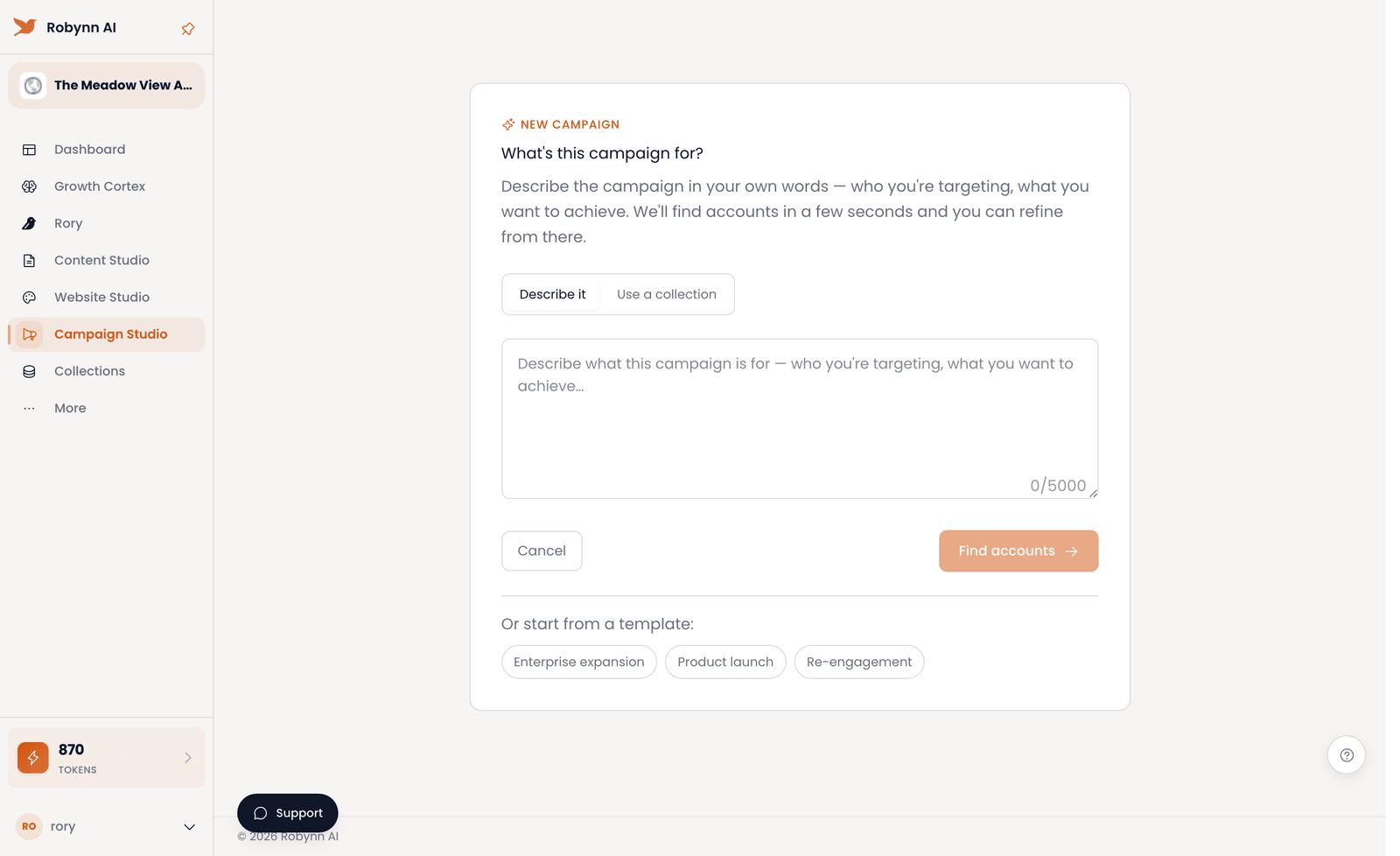
Campaign Studio · start from a goal.
Run and manage it
Before you start: have a campaign in Drafts.
Move it to Ready
Take the campaign from Drafts to Ready once setup is done and the plan holds up.
Set it Active
Move it from Ready to Active to put the campaign in motion.
Filter by status
Use the status filters (All, Active, Ready, Drafts, Failed, Archived) to see exactly where each campaign stands.
Handle and archive
Address anything that lands in Failed, then Archive what's done to keep the pipeline clean.
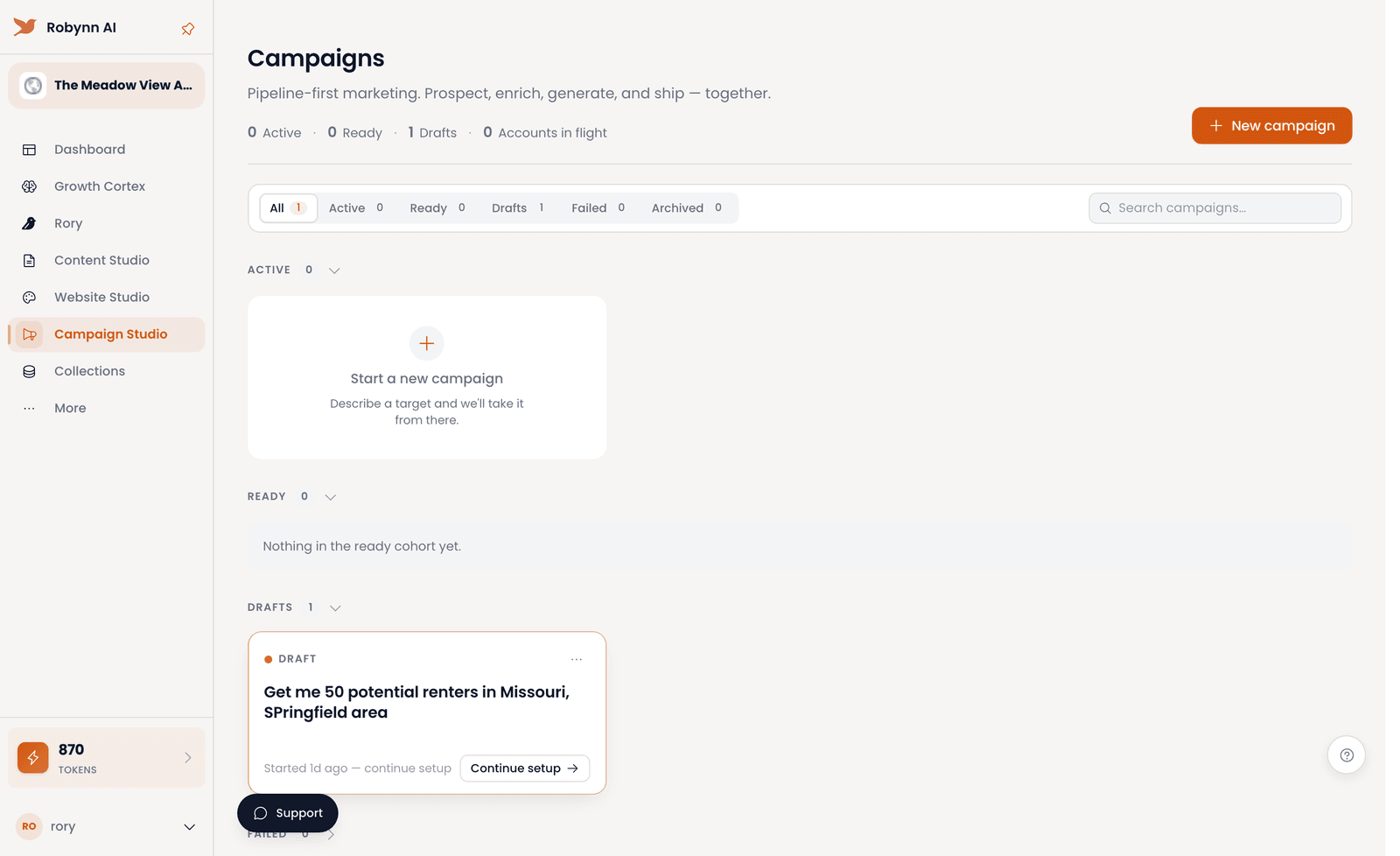
Campaign Studio · campaigns by status.
You turned a sentence into a running campaign you can watch by status: you named the outcome, Robynn built the campaign. Next: feed it from so every touch is on-brand.